 PlaySuper
Console Setup
Create your PlaySuper account, set up a game, configure coins, get your API keys, and place your first touchpoint
The PlaySuper Console is where you create your game, configure coins, get your API keys and place touchpoints. Complete steps 1 to 6 before starting any code integration.
Everything happens in one console at console.playsuper.club. A game you create there gets a sandbox twin automatically, so you never set anything up twice for development and production. The development console at dev-console.playsuper.club shows that same studio; you do not need it for a normal integration.
1. Sign in
Go to the PlaySuper Console and sign in with your Google account.
Targeting a US audience? Games serving US users must be registered on the US console instead: console-gcp-useast.playsuper.club. Registrations do not carry over between regions. Complete the steps below on the console for your region, and use the US URLs listed in Getting Started.
2. Create your organization
Open the Organization tab and create a game studio. You can invite team members through the Invite Users option on the same page.
3. Create a game
Navigate to the Games section and click Create Game. Enter your game's name, upload a logo, and fill in the remaining details.
4. Create a coin
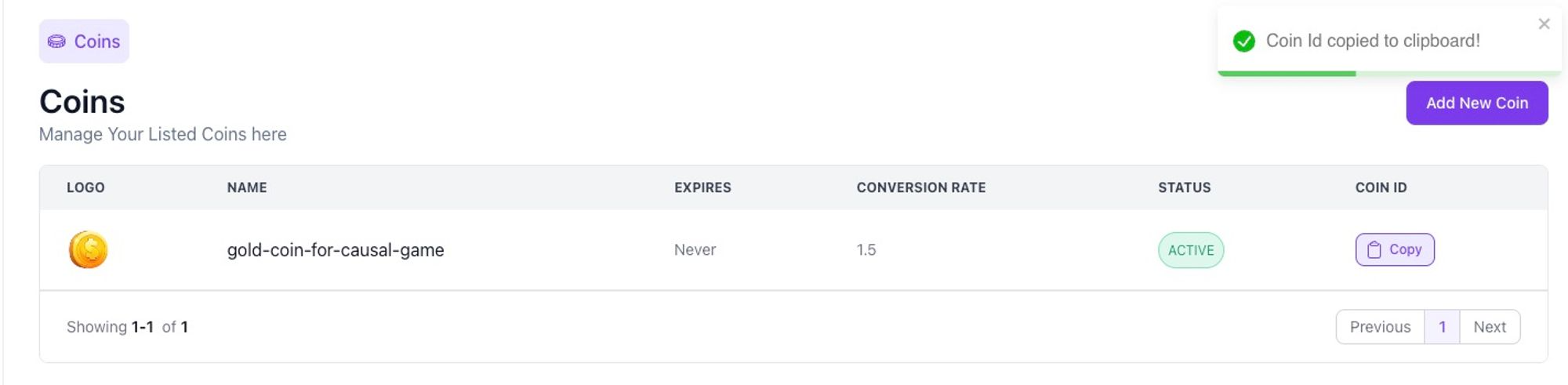
Open the Coins section and create a coin for your game. Configure three settings:
- Conversion rate: how much real-world value one coin represents
- Expiry date: when unused coins expire (optional)
- Organization-wide: whether this coin is shared across all games in your studio
Copy the coinId that appears after saving. You will need it for every distribute or purchase call.
5. Link the coin to your game
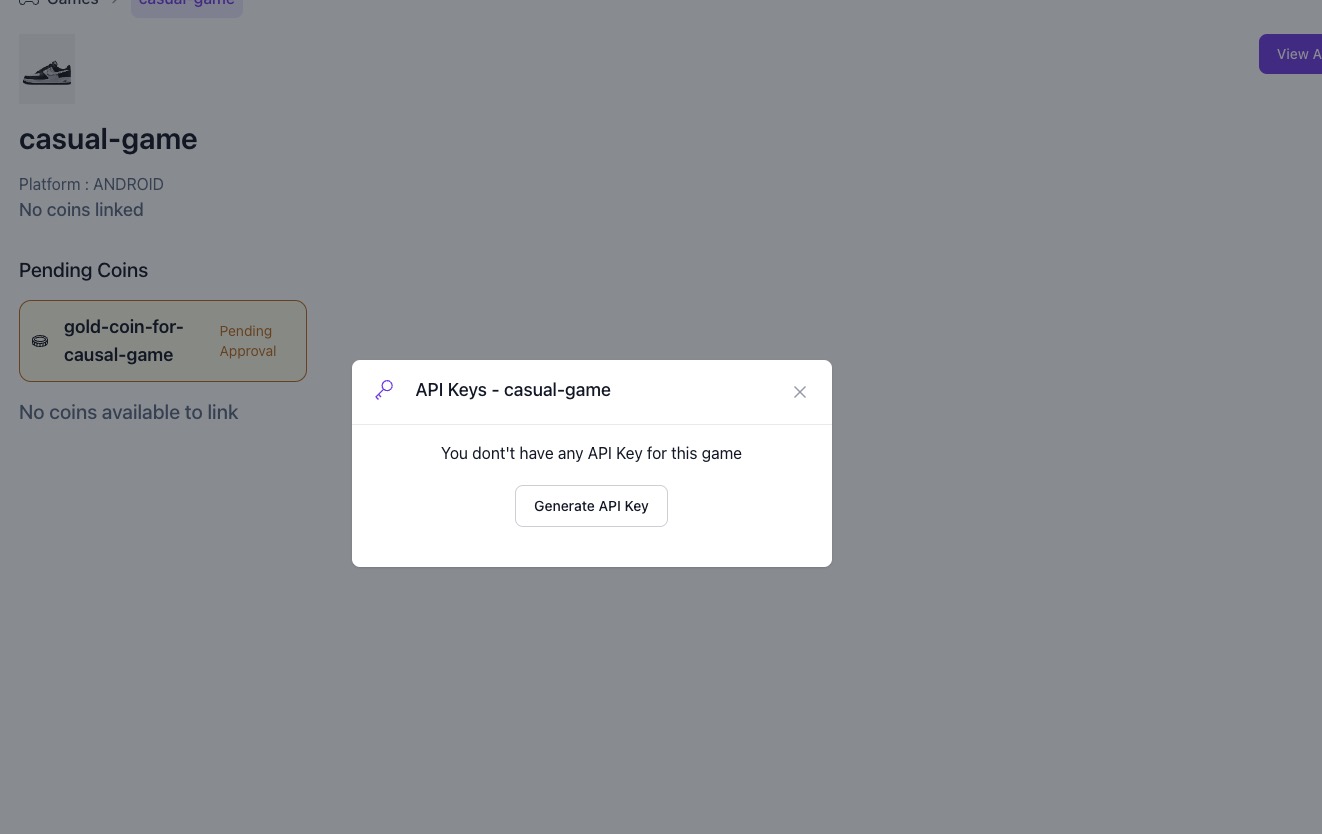
A coin must be linked to a game before it can be used. Coin distribution and reward calls fail for unlinked coins (400 Invalid coin for this game).
Open your game from the Games section: the game page shows an Available Coins list. Link your coin from there. Linked coins appear under Linked Coins on the same page.
Organization-wide coins are linked automatically to every game in your studio, so this step only applies to game-specific coins.
6. Get your API keys
Open the API Keys section. Each game has one key per environment:
| Key | Prefix | Use it with |
|---|---|---|
| Test key | ps_test_ | The development environment: dev.playsuper.club and dev-store.playsuper.club, or Initialize("...", true) in Unity |
| Live key | ps_live_ | Production: api.playsuper.club and store.playsuper.club, or Initialize("...") in Unity |
Your game starts with a test key. Copy it and build your integration against the development environment. You can rotate the test key from the same page; the old key stops working immediately.
The live key is issued after validation. Open your game's Integration page, stay in the Testing environment, and run Validate integration once your build has authenticated a player and distributed coins in the sandbox. Once validated, switch to the Production environment on the same page to issue the live key.
Store both keys securely. This one key is what every PlaySuper API accepts as x-api-key; the Webhooks and Gift Card pages use it too. See API keys for the full glossary.
Console Setup - Getting Started
Watch how to set up the PlaySuper console for your organization
7. Place a touchpoint (optional)
A touchpoint is a reward widget your game draws on one of its own screens, outside the store. If you plan to use one, configure it here before writing the rendering code, because the API returns nothing for a screen with no placement.
On your game's Integration page, in the Testing environment, choose a frame for the Home screen from the artwork library. The placement is written to the sandbox first and copied to production when you go live. Your game then fetches it with GET /v2/touchpoints/serve?screen=home or the Unity SDK; see the Touchpoints API.
You can also do this from a conversation with the PlaySuper for Claude connector: upload your game screens, accept the placements the model proposes, and they are live.
8. Webhooks (optional)
If you have a backend, configure a webhook so PlaySuper notifies your server when coins are credited, debited or refunded. Webhooks are set up with the API using your Game API key; the console's Settings section shows their delivery logs. See the Webhooks guide.
Next steps
| Guide | Description |
|---|---|
| Unity SDK Guide | Integrate PlaySuper into Unity games with the native SDK |
| WebView Integration | Embed the store in native Android, iOS, React Native or Flutter apps |
| API Reference | Use the REST API directly for custom integrations |
| Webhooks | Receive real-time server notifications for coin transactions |
Support
- Email: engineering@playsuper.club